
Solving overheating 🔥 problems for MacBook Pro with LG UltraFine 5K 27"
I have been struggling for the last two weeks with my MacBook Pro and a lot of restarting issues due to overheating. I managed to solve or mitigate the problem, and I think it’s worthy of sharing my experience because there are not too many solutions posted out there that work. Let’s begin!
tl;dr
Aluminum stand with Fan + TG Pro = problem mitigated! Average of 20º less than no stand and no Fan Control Software. No more restarts. Happy again for 70 USD.
Context
I have a MacBook Pro (16-inch, 2019) 2,4 GHz 8-Core Intel Core i9. It generally gets hotter, especially on high activity (compilation times, dockers, video processing, etc.) that the i7 version. I also have a couple of LG UltraScan 27" 5K.

This monitor is a super lovely external screen compatible only with Mac machines. It’s two 5K screens, so the CPUs and graphics have to work a bit extra.
With this setup, my MacBook gets superhot, and from time to time, it restarts due to overheating. I have been reading articles about overheating problems, but the root causes are different. I have tried various potential tricks, such as testing different laptop sites of the USB-C ports. However, restarting problems still happen.
Here is my troubleshooting considering applications closed and no particular process activity running on the laptop.
Laptop on a Surface no External Screens
If I put the laptop on top of my wood table connected with the standard MacBookPro power supply, this is the average result: CPUs 45º, Laptop 40º, and fans running at 1770 RPM (average minimum). We will use this as a base reference.
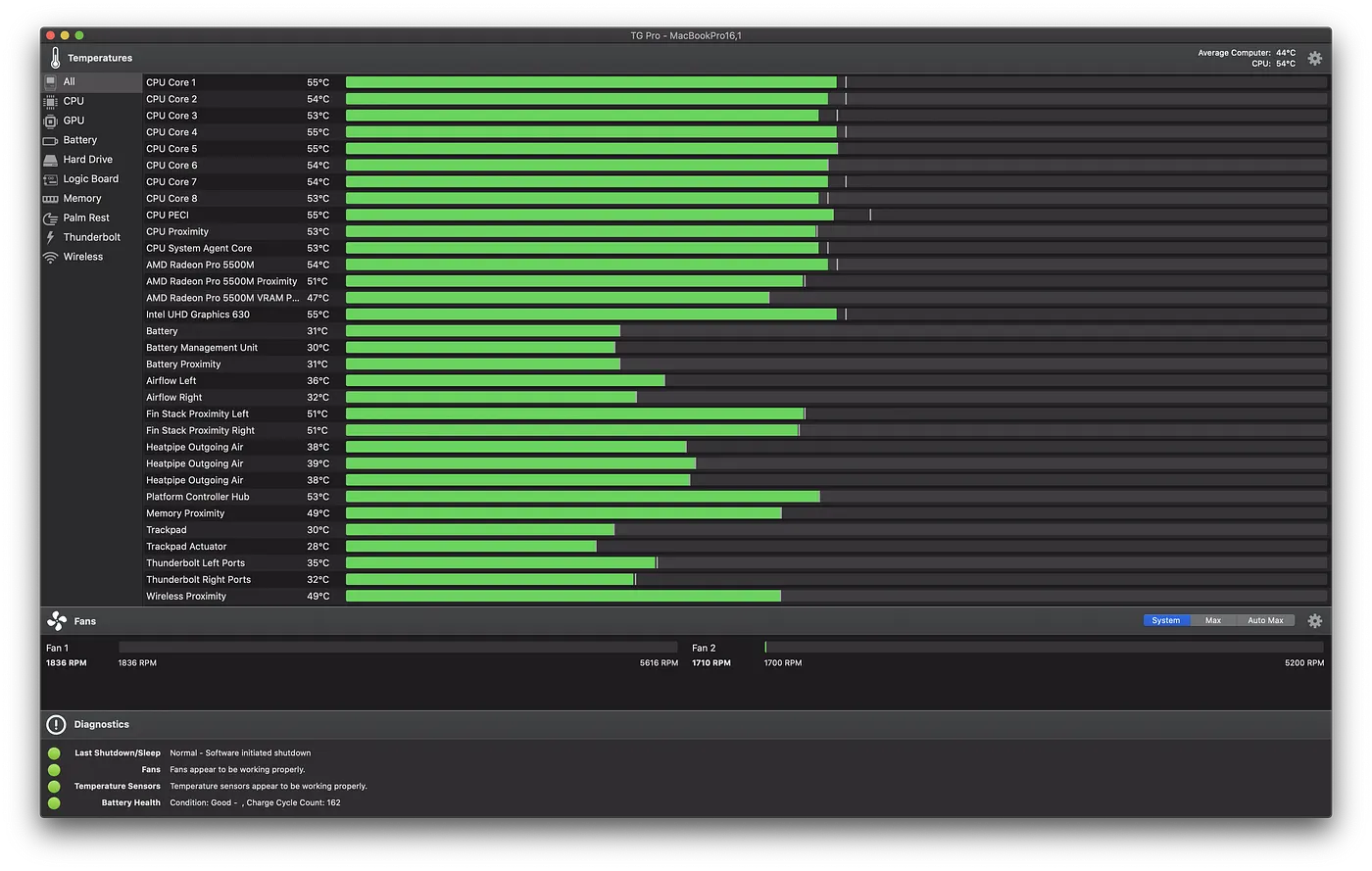
If we connect one of the screens that also supplies energy: CPUs 57º (+12º), Laptop 49º (+9º), and fans still at 1770 RPM (+0 RPM). Special mention to the AMD Graphics that increases clearly in temperature. Let’s connect the second screen.
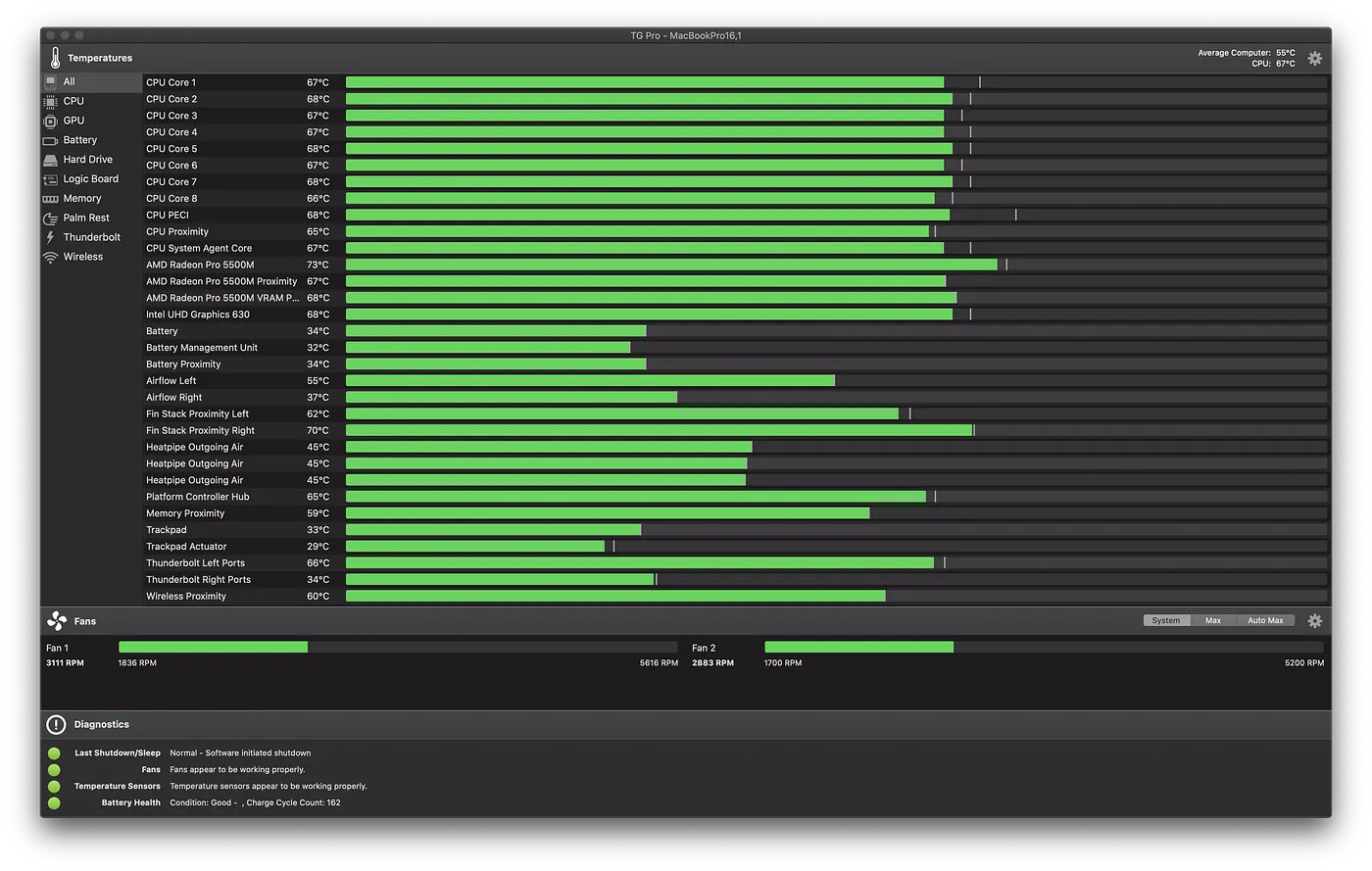
The result after five minutes is CPUs 62º (+17º), Laptop 54º (+14º), and fans not stopping to increase speed for now at 3200 RPM (+1430 RPM). The problem is that after 15 minutes, the fans are running at full speed (5400 RPM) to keep the same temperature.
If I start with the rock’n’roll, opening IDEs for programming, some indexing activities, and running dockers, the temperature goes over 80º, Mac freezes, and then it shuts down with a final push from the fans.
So we need to find ways of reducing the temperature of the Mac.
Laptop On Metal Support
I bought one of these aluminum metal supports for the Mac that dissipates a bit the temperature and improves the airflow. This particular model includes a fan beneath the laptop.
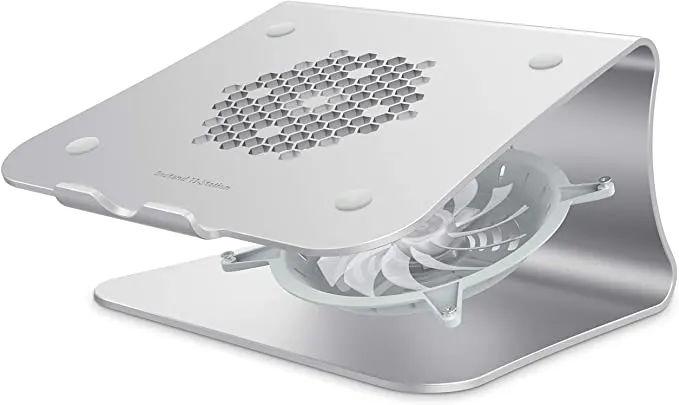
Results are a bit strange because, in some experiments, the support reduced the temperature by -10 degrees and in others no more than -2 degrees. With low activity, just the stand shows the following results: CPUs 65º (+19º), Laptop 56º (+12º), and fans not going over the 3000 RPM. After some days, the numbers of restarts have dropped, but still, some are happening, so the support is not enough.
TG Pro to the Rescue
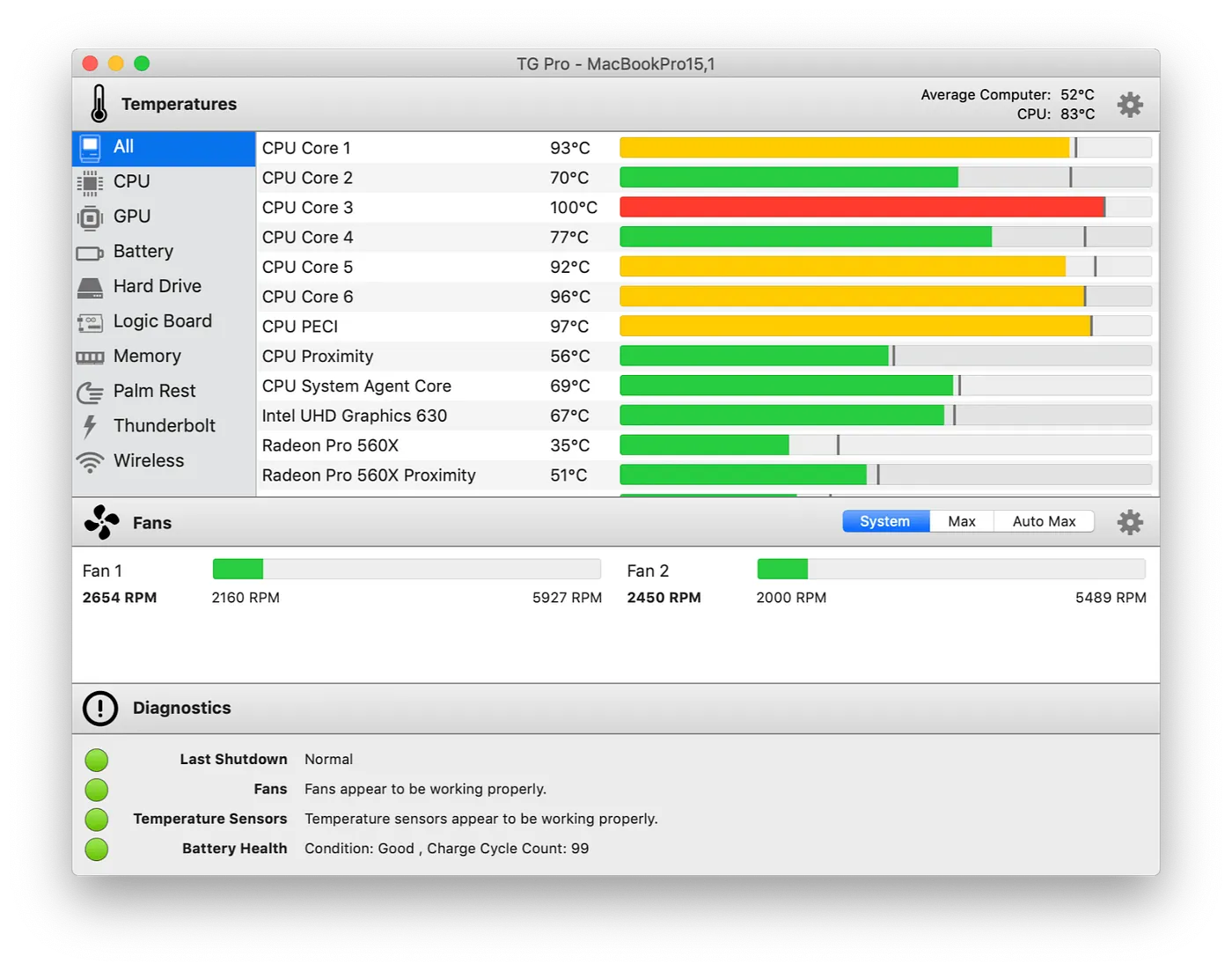
TG Pro is the software that I have been using for measuring the temperature. But it has a couple of features to control the fan speed of your Mac. It looks a bit hacky program, but it is worth every penny of the 9 USD I paid.
It has an out-of-the-box mode called “Auto Max.” When the average CPU temperature rises over the 70º, it automatically starts the fans to full speed. I have changed the config for not monitoring the average CPU temperature but any temperature sensor due to the AMD chip that could work harder than the CPU in some situations.
Final Solution
For the last three days, I have been working with the two screens with the previous setup without any issue. So, if you are experimenting the same or similar problems as I did, here is my recommendation to steps:
- Installing TG Pro and setting fans to 100% when any sensor was higher than 70º. Cost of 18 USD (I got it for 9 USD in offer after the trial expired)
- Get an aluminum metal support with a built-in fan. Price of 60 USD.
Thanks for reading, and let me know if this article was useful for you!
Originally published on Medium.